
Problem
When you open Photoshop on your Mac, you may get the following error:
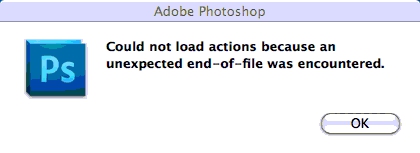 “Could not load actions because an unexpected end-of-file was encountered.”
Which is then followed by another error:
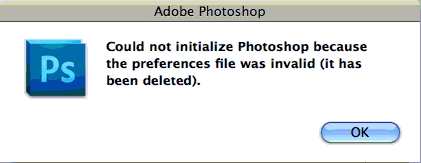
“Could not initialize Photoshop because the preferences file was invalid (it has been deleted).”
Cause
This is caused by corrupt preference files.
Solution
Select the tab below with your operating system:
Mac
- Go to your home folder.
- Go to your User Library folder. If you are unable to see your User Library folder, please follow this post.
- Go to the Preferences folder.
- Delete the “Adobe Photoshop CS5 Settings” (or similar name) folder.(Folder name may differ depending on what version you have)
Windows
- Click the Start button (Windows XP users should then click Run).
- Type %appdata% and press Enter.
- Open the Adobe folder.
- Open the Adobe Photoshop CS5 (or similar name) folder.
- Delete the “Adobe Photoshop CS5 Settings” (or similar name) folder.
I just had same problem…. works fine now.
Dude!!!! Thank goodness you just saved me a trip to my office lol
thanks you
Wow. Saved my bacon. Thank you
Wow! I was dying to find this solution yesterday but today I got to you somehow and you saved my life! Thanks!
Man, oh, man — THANK YOU THANK YOU THANK YOU!
Perfect fix
thanks man now it is working
Oh Yes Also Working On cs6 . . 🙂
Thanx
thank you!!!!!!!!!!!!!!!!!!!!!!!!!!
THANKS VERRY MUCH SIR
it worked great. photoshop is back up and running. ThANK YOU SOOO MUCH
Thank you so much – it works.
Hi this is really workable now, thank you so much for this imported information…mindblowing and easy to understand solution…
OMG THANK YOU!!!!!!!!
seriously….THANK YOU!!
sorry, I can’t find this folder. What is home folder?
The home folder’s name will usually be your username in lowercase. It contains the folders Documents, Pictures, Movies, Downloads etc. The icon for it is a house.
To find it, open a folder and you should see it on the left sidebar. In my case the folder is called “carl”.
I have attached a screenshot below. Click it to enlarge.
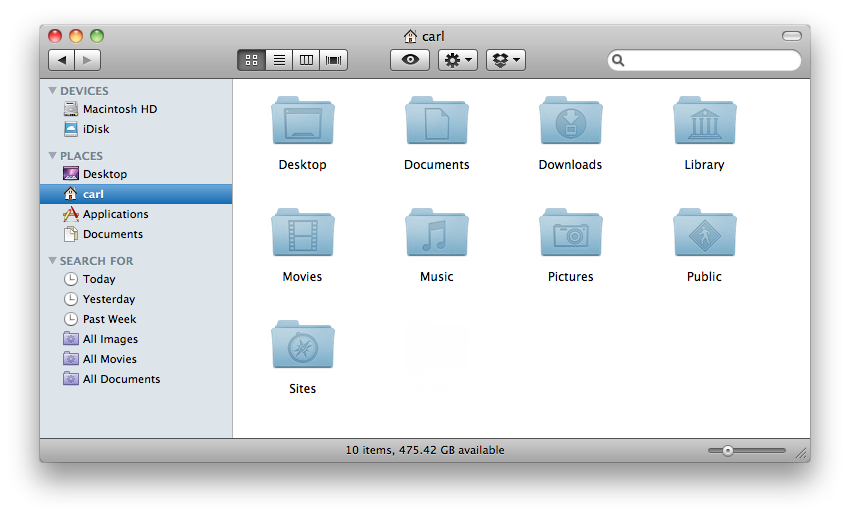
The home folder is highlighted in blue.
Omg ILU XD I didn’t understand what the original poster meant, your awesome Thank you!
Brilliant. Thankyou
Thanks! 😀
tnx a lot it works
Thank you!
And for pc users? I have the same problem…
Have updated the article with a solution for Windows users.
It’s not letting me view the solution for Windows…
thank youuuuuuuuuuuuuuuuu a lot
thank you
Thanks Carl Norton! you saved me
thanks a lot.. happy day my friend
Thanks!
very very very Thank u
Thanx a lot
🙂
THANK YOU!!!
Thank you!!!!
SOOOOOO thankful!
thanks bro
Holy shit! Tanks, dude! =]
Thanks for windows solution :D, It works! (re-installation of photoshop in this case didnt help also )
You need to recreate the preference file. Open Photoshop, hold down Cmd+Alt+Shift, and then click Yes to the prompt “Delete the Adobe Photoshop Settings file? This will delete all of your preference settings and set them to installation presets. (http://forums.techguy.org/digital-photography-imaging/342418-photoshop-preference-files-missing.html)
excellent. this method worked better for me.
Gold, solid gold! Thanks.
Thanx man- you just saved my day..! The first workaround didn´t work for me so I tried your post- and Photoshop works again..!
MAKE SURE YOU CLICK THE PHOTSHOP ICON TO OPEN FIRST
THEN HOLD DOWN CTRL / SHIFT / ALT
If you hold the keys down BEFORE clicking icon then it won’t work. Just FYI, it was driving me crazy and I finally figured it out… Thanks for the info by the way!!
Years have gone but your advice is still a life saving. Thank you!
Great! thank you so much
thanksssssssssssssssssssssssssssssssssssssssssssssssssssssssssssss
u help me a lotttttttttttttttttttttttttttttt babyyyyyyyyyyyyyyyyyyyyyyyyyy
aghain thanks
ya Ali
THANKS MAN IT WORKS
Works great now. Thanks
Pro.
uraaaaaaaaaaa thank you!!!!!!!!!!
I did this and still get the same error message, with the additional error message “cant find workspace folder”.
Same here….I did it and still have no actions loading and it won’t let me load any…:(
Thanks so much!!
I did as you said, and it was fixed!!
Thank you very much, friend.
Eternamente agradecido total prooo
Joining the sea of voices with a bunch of solid ‘thank yous’!
Thanks
Thank you very much! very much appreciated.
Yes thank you!!!
LEGEND!!
thanks bro
fuck yeah. that was hella easy. thanks a lot
thanks it totally worked!
Thank you
Thank You Carl N.
That was right on the money!!!! you helped save the day and meet deadlines………!
Thank You………worked great!
Wow I almost freaked out cause re-installling was no used. THANKS
WAY COOL!! Thanks so much. I thought i was going to have to uninstall and reinstall the whole program but this worked.
thanks!!!
You are amazing
Thanks so much!
thanks a lot. happy new year
Thank you so much! What a great fix!
thank you, that fixed it with the command alt shift key had to reload photoshop to get it to work but worked the second time.
Thanks, it worked for me, too.
Thank you so much!!!!
Worked great. Thank you!
To easy! Thanks for the easy fix.
thank you very much!!! )
Thank you so much ………………i participated in design contest and just one day left and my Photoshop creating this prob but fixed now ,thanks alot
thanks , solve problem
Hey! I had the same problem but when i checked on the libraries folder i didn’t find any photoshop files or anything… Help?
same here, no photoshop files in the preferences folder. help?
Thanks so much you saved my presentation
thx bro:) that was so helpful
thx bro thx
how about if the photoshop says, “Could not initialise Photoshop because of a program error”. plsss
Try reinstalling Photoshop. Also, try it on another user account and without any plugins to help isolate the issue.
thank you!
Nice thanks!!
Thank you so much, it worked!
Thanks a lot!!!!!
Worked fine for me!
When PS doesn’t find the folder there, it just creates a new one. I think I’ve lost my preferences but that’s no big deal.
Thanks!
It works!!!!!!! Thank youuuuuuuuuuuuuuuu 🙂
booya! thx]
THANK YOU!
Thanks, I fixed my daughter’s Photoshop app!
THANKS! LIFE SAVER TIP
Funny! I haven’t had this problem in so long, 12 years, I had completely forgotten about this bug.
Thanks. I really appreciate it.
saved me a re install of photoshop, thank you
OMG Thank you so much it works! I’ve been so annoyed but this saved my life THANK YOU!
thank you!!!!
Dear help desk – Sorry I resent as checked to notify by email – thanks
I did what you recommended but no improvement- perhaps this works for most others applications. I am using a fairly new Toshiba laptop that is foolproof for most anything for two years now and I do above and beyond in Photoshop as a professional photographer. I just encountered this tonight when trying to open my Photoshop CS5 64 Bit. It will not open- Even after deleting the preference files as you say- I had two of them. There was no improvement- I also find it funny that others say “go open photoshop and add “named such” new prefrences…? huh? How can you go to Photoshop and open it to add new preferences when you cannot open it to begin with? Like when you are out of gas, Go start your car and drive to the gas station to get more gas?
Please suggest exactly how to reset these preferences files. I am stuck without being able to open my Phoptoshop CS5 on my Vista Windows now.
Thanks
Mark
The instructions on how to reset the preferences are outlined above. Was it the “Adobe Photoshop CS5 Settings” folder that you deleted?
Yes! Thanks…
thanx
THANK YOU SO MUCH!
THX DUDE U R AWESOME !!
Thank you!!!!!
THANK YOU!!!!!!!!!!!!!!!!!!
There are no Adobe or Photoshop files in my preferences folder to delete? What now????
Try these fixes:
Thank you man 😉
Thanks, U make my day, woks fine now !!!
Thank you so much !!!!!!!!!!!!!!!!!!
You Help me a Lot! Great job!!!!!God Bless You!
Thank you !!!!!
Thank you so much!
YOU’RE A *!
Thanks SO much!!!
Thank you so much.. it was driving me insane!!!
Thank you. Google… your page… easy fix. Job done.
I love you
THANK YOU SO MUCH!!!!
I LOVE YOU SO MUCH OMG THANK YOU
THX i love it when I find the solution quickly and when the info is clear!
This is DA BEST.
I am in awe of how simple that was to fix…Thank you!
Liberté, égalité, fraternité ,thanks bro!
Really Helpful.. I got mine working..!! Thanks Chap
Thanks for sharing 😀 fixed the issue
Thank you so much! Works perfectly now!
Muchas Gracias!!!
Thanks.It works <3
Cheers!
Thank You Somuch
Thanks a million
Thank you
Thank you so much !! It’s been one week I’ve been looking for it.
Thanks!
I don’t know you but I love you.
THANKS! You’re the best!!
You saved alot.. Thanks for the good job.
Thanks a LOT bro! WELL DONE!
thx
ooooooooooooooooo Thank you so many much.
thank you sooo much!!!!!!
Great fix it , thanks
OMG THX!!!
Thank you so much for sharing this, I was afraid to do it, but what did I have to lose as PS6 wasn’t working anyway. Very helpful!
A Big Thank You. Had an emergency
I am getting the message ” ”Could not load actions because an unexpected end-of-file was encountered.” in Adobe photoshop 7.0 . My problem was not solved by deleting ” Adobe Photoshop settings ” . I am getting message arm.dll file was corrupt. Sir , Please help me .
My mail id : pushparaj_ece@yahoo.com
thank you very much, you saved the day
Thank you so much..
THANKS A LOT FOR THE HELP, FIXED and WORKING
you saved a lot of people
IT WORK FOR ME!!
Awesome thanks
Thanks!
Thank you so much! I would never of considered deleting MORE Photoshop folders in order to solve the problem! Thanks!!!
thank you so much…!
I cannot figure out step 3 on Mac. I also typed out what the folder could have been and looked at each one and couldn’t figure out step 4 as well. Thanks for all the help in advanced.
Cheers
Sounds like you are just having some trouble getting to the User Library.
Another way to access it is, from Finder, click Go (on the top menu), hold Alt and then click on Library.
Thanx_iT Works
thank u ….it worked
Wunderfull, thank you. It works.
Woow! IT WORKS!
THX A LOT, you are my hero!!!
it worked!
it really worked for my cs6
thanks!!! it worked!
i deleted my preference folder but my actions are gone all of them :/ am I going to have to re load them??
Hi Laura.
You will have to reload them yes. Due to the deletion of the preference folder this will have removed all preferences of the program. This will include any plug-ins and actions that were priorly available.
Deleting the preferences has essentially reset the program. Only updates and major modifications should remain unchanged.
Thanks alott buddy… cheers 🙂
Hey!
I can’t find the User Library folder, when I go to my personal folder i can’t find anything with this name. I have also tried to find the photoshop setting document but i can’t find it! i’M DESESPERATE!!! ARGHHHHH
Apple removed the link by default in Lion and later. If you select the finder, click “go” in the top menu and hold the alt/option key to reveal the library link, details in this post. Alternatively follow this post.
We will make the links more explicit in the article in the future to avoid confusion.
thanks a lot!! I finally found the Library folder!
it worked!
THANK YOUU
Thank you dude… awsum..sexy.
God bless you..
Up and running again…
THANK YOU!
oh….. thanks a lot….
Thank you so much friend…………….
Thanks!!! worked for cs6 aswell!
wow…nice 1.. thank you soo much.. works great!
thank u so much..really it is more helpful
THANK YOU!!!!!!!!!!!!!!!!!!!!!!!!!!!!!! I have been messing with this for a couple of days, even tried uninstalling and reinstalling – LIFESAVER
Worked Perfectly Adobe Cloud CS6
Thanks a ton dude 🙂
YESSS!!!!
thank you so much.
Thanks … it worked…… in fact… it sped up my photoshop App, didn’t realize how bloated I made it over time… thanks dude
Thanks so MUCH!!!
Thank You Very Much!!!! ive been finding the solution for about 2 months and no one seems to know!!!! until i get to this forum!!!! thank you very much :’>
Thank you, God bless u!
I have CS4 and it didn’t work for me
Thank you so MUCH!!
OMG! Thanks!!! Thanks!!! Thanks!!!
It worked like magic, was already thinking of how to how to get a setup for another installation. What can without people and the internet. Thanks a lot.
Thanks!!!!!!!!
WOW! Thank you big time!
Thanks & Thanks 🙂
Thank you so much! You are a life saver!!
Thank you so very much!!!
thank dude u save my life phewwwww
Gr8 Thank you 🙂
OMG!!! THANKU, I had to force quit a file InDesign and my Photoshop started to display this message.
Yes, many thanks. You saved my bacon!
omfg THANKSSS
thanksssssssssssssssssss
IT REALLY WORKS… YAHOOOO… Thanks.
Itz really wonderful MAN……….Ton of THANKZZZZZZZZZ…………
Thank you very much!
Thank you!
worked for me! Thank you very much..
Thank you !!! it worked!!!!!!! thank you!!!!
omg , i just save my life , thanks buddy 🙂
it really work…im using cs5.1 extended!!!yahoo…
Just wanted to say thank you very much for the advice. It works fine now. You are AWESOME!
thanxxxxxxx A lot
it really work..thank you very much bro….
Thanks a lot!!..=)))
OMGosh! Thank you SO much! I uninstalled and then reinstalled the entire suite, thinking somehow I had accidently deleted something…only to find out from you that it was a corrupted file. THANKS, my sanity has officially been restored. Life can continue as normal.
Thank you!!!!!!
thank you mister!
REALLY AWSME DEAR … THNX TO U… THNZ A LOT
Thank you!!! You saved my work :*
Thank you!!
it works for me in window 7
Thanks lot!! buddy… it’s works
Thanx a lot!!!!
Saved my day! XD
Thank you man, woks like a charm now.
thanks guy
Thank you!
thanks. its working
Thank you so much, you just saved my life!!!
OMG thankyou so much after a month of back and forth with ADOBE and no fix… i should have just googled it…. YOUR AMAZEBALLS… thankyou so much for this post!!!
Man! you save my life. THANK U SO VERY MUCH!!!!!!
BOOOO YAAAAAA! Thanks!
thanx a lot!!
I hope that you see this because I just want to say… I love you. Thank you is not enough.
Thank you soooooooooo much!
Thanks! Damn Windows updates…
I am not seeing the preferences file at all in the library and I still get the “preferences file invalid and has been deleted” message every time I try and open you photoshop 6 on my main account. However when I login to the guest account it works fine. But all of my work is on the main account
Thank you so much!!
Extremely thanks for your advice 😉
thanks a ton!
Thank you!!! Waiting for a mac tech to come fix photoshop and I just fixed myself 🙂
Thanks a ton buddy! I was feeling helpless when I could not initialize cs..I was not getting any error message…it was just giving NOT RESPONDING ….on the top….Also, I found AWSCommonUI.dll as a new folder that was created since the time when Photoshop could not initialize. I deleted that and later followed your instructions and……abra…ca…dabra……IT WORKED MAN…..thanks a lot
Thank you very much.
For PC
C:\Users\xxxxxxxxxxxxx\AppData\Roaming\Adobe\Adobe Photoshop CS5
Hi, it seems I don’t have a ” Adobe Photoshop CS5 Settings ” file in my preferences folder.. what do I do now ?
AM so greatful, is working now, am rocking it…..!
Thank You So Much!! Simple and clear advice which fixed my problem yay!
YES! This worked for me! Thank you!!!
Thank you
your AWESOME! This saved me from the screams of my boss! Phew
THANK YOU!
THANK YOU!!! You’re Awesome! :”)
OMG! Thanks so much!
thanku so much..
YAYAY all better now. thanks
COOL~~~ thanks… 😀
Thanks so much!! On a tight schedule for a client 🙂 ppffeeeww!!
Thank you guys! Almost started to freak out, but this solution worked like a charm.
This post is still saving peoples lives:) Thanks!!
Such a easy Fix. THANK YOU!!! I was panicking.
you’re my HERO. Thanks!!
Thank you! Saved my evening…and my sanity! xoxo
Omg!!!! You made my day! I was devastated the whole day because of this problem. Thank you so much! x
Made my day!!!! THANX
thanks!!! you are a lifesaver to us all!
DANKE!!!!!!!!!!!!!!!!!!!!!! after 2 hours of trial & error, I found your suggestion and it worked!
Thanx! saved my a**
YAY! Omg thank you so much! It worked like a charm!!
thanks so much worked very well ..
Thank You! Works great!
Yippeekayee! Thanx a million!!!
This tip absolutely WORKS!!! Thanks for posting! This saves me from re install. Tip if you close your Photoshop don’t use a force quit to close it quickly, be patient and just wait. You sir just save my A$$ from a sure painful re-install and re-configure.
si funciona con solo eso, en mi macbook y pensar que quería volver a instalarlo. Gracias por la solución.
[if it works with just that, in my macbook and think you wanted to install it. Thanks for the solution.]
Great !!!!
Worked a treat
Thank you so much … U saved me … I was thinking of contacting someone for this problem 😀
WOOOW! THANK YOU SO MUCH!!! SAVED MY DAY!!
Works fine, thanks a lot.
You saved me in a BIG WAY! Thank you so much.
Its great,, man thanksssssssssssssssssss
so much thanks,, scared,,,when this thing happen
thnx buddy ….workinggggggggggggggggggggggggggg
Very Thanks
yes, i found it, it’s worked properly …………………………thanks
THANKS!!
Your a genius 😀
MANY THANKS :))
bro you are a computer genius guy imean this method work fine with me
Thanks KU
OMG thanks so much !!!!!!
thankssssssssssss
Thanks x a MILLION!
you’re a life saver!
Thank you!
Thank you, it worked fine on my pc!
Thank you! Thought I’d have to go through the rigmarole of re-installing PS.
Thank you! 🙂 Really!
OMG THANK YOU!
Big big THANK YOU!!!!!!!!!!!!!!
oh man, thanks a ton. you saved me.
Thanks, mate. You saved me. 😉
THANK YOU VERY MUCH !
Hi,
I don’t find any file from photoshop in library/preferences. I have from Adobe illustrator, indesign, fireworks, pdfadminsettings. Could you help me?
Thank you so much
Anne.
works with PS cs6 too, thanks 🙂
Thank you greatly you saved my life 😀
Great Thanks it helped me
thanks a lot
thanks a lot
thanks!
Thankssssssssssssss…. 🙂
Thank you very much!!!! The problem had resolved!!!!
I LOVE YOU! thank you so so much!!!!
THX!!!! (from Russia)
Thank you so much man, you saved us
thanks a lot
Thanks Mate.. It worked for me.. !! Cheers
Nice tip Thanks
thank you
Thank you … problem fixed…
Thanks.
Thank you so much for the help, I was very much stuck in reverse!
I Love UUUUUUUU
:********
life saver, thanks
Brilliant! Thanks a lot… been struggling with this for a few days now.
Thank you
its work dude Thank you so much
Boss thank you sooooooooo much… you saved my time and money.
Obrigado!!! me salvou hoje!
thank you soo much
no sweat, no sweat! thank you so much for the fix. i am the latest victim of this error in July2015 hahaha!
Thank you
thank you! It works!
This is such a perfect solution. Thank you very much.
Omg thankyou
amazing..thanks
Thank you so much… damn IT hasn’t responded and just spent an hour restarting my computer over and over again!
oh thank you for this quick fix! my PS works fine again now =)
just amazing no where i could find the solution u just saved my life 😉 :):) 🙂
WOW! Thank you so much
Thank you million times!
Thank you!! some hair is still left on my head so it’s thanks to you i’m not totally bald
What a lifesaver that was! So fast compared to reinstalling my old CS5 and losing the updates. Look at all the years full of thanks and compliments from other thankful people.
Thank you! Saved me too!
THANK YOU SO MUCH!!!!!!
THANK yooooooooooooooooooooooooooooooooooooooooooooooooooooooooooou!!!!!!!!!!!!!!!!!!!!!!!!!!!!!!!!!!!!!!!!!!!!!!!!!!!!!!!!!!!!!!!!!!!!!!!!!!!!!!!!!!!!!!!!!!!!!!!!!!!!!!!!!!!!!!!!!!!!!!!!!!!!
Merci beaucoup!
YOU ROCK!! IT WORKS!!
thanks a lot
thank you so so much!! it’s now working!
Thank you, it work.
OMG I feel like a broken record but that literally saved me from a mini panic attack. I’m not going to lie… I didn’t believe this post at first so I didn’t delete it, I just moved the file. Can anyone explain what exactly what is in that file and how it gets corrupted? I’m confused how Photoshop works without all those files in that folder minus the corrupted one(s)? Thanks!
God bless you for sharing!
Great, this worked with CS6 as well, thanks a bunch!
thnx bro..
Thank you so much
funziona; grazie
Ur the best man u safe my life
I almost cried when my CS5 was not working. Thank you so much! It works just as it did before… you’re awesome!
Perfect.
thanks a lot! thanks
Thank you!
Works perfectly well for CS6 Users too.
THIS WORKED FOR ME… I had a 2-part issue. Apparantly my “Actions Palette.psp” file in the Adobe settings was corrupted. It showed 0kb in the file size.
Deleting the photoshop settings folder worked. I’m on Photoshop CS6, and here is where I found my photoshop settings folder:
C:\Users\USERNAME\AppData\Roaming\Adobe\Adobe Photoshop CS6
GREAT!_THAKS;THANKS; THANKS!
Thank you!!
Thank you so much :)….
Thank you it helped a lot 🙂
Phew – thanks for the lead: I found my preferences folder (running Windows 10 and Photoshop CC5.5). Too chicken to delete it, just renamed it ‘old’. Started just fine
It worked, Thank you! 🙂
Thank you so much! You saved me a lot of stress, I’d been clearing things out on my computer and must have done something, it’s working again now, I really appreciate your helpful instructions!
Click the Start button (Windows XP users should then click Run).
Type %appdata% and press Enter.
Open the Adobe folder.
Open the Adobe Photoshop CS5 (or similar name) folder.
Delete the “Adobe Photoshop CS5 Settings” (or similar name) folder.
thank you god!
Thank You!!!
Thank you x 1000 for this. I need to function with Photoshop and thought I had lost it altogether
thank you so much! i thought i was done for!
Dude!!!
saved my life bro
Thanks
It worked for me…! Thanks for posting..!
Awesome! Thanks. It works.
Could not load actions because an unexpected end-of-file was encountered ERROR
Windows users this advice works 100%
Thanks so much
Thank you!!!
Thanks IT IS WORKING ….
Thank you !!!
Wow… It work… Vwry
WOW, thx!
It works! thank you!
Thanks alot..my problem is solved
after months finally it works again THANK YOU!!! and in a very easy way woooooow
thank u so much!!
Still works 2021
It worked. Thanks man